Installing RNAvigate
If you have any questions about installation, please submit a GitHub Issue.
RNAvigate can be installed several ways. Choose the option that best fits your environment:
Docker: easy, fast setup to work locally on Windows, macOS, or Linux
Conda: easy if you are comfortable on the command line or already use conda/mamba
Pip: if you are more comfortable with pip and virtual environments
VS Code: a worthwhile workflow improvement with a little more setup required
UNC Longleaf: for UNC users working on the Longleaf HPC cluster
Developer installation: to contribute to the codebase
Each method follows the same three steps:
Install dependencies: set up RNAvigate and Jupyter in your environment
Open a notebook: launch JupyterLab in a browser or open a notebook in VS Code
Test the installation: run a sample plot to confirm everything works
Docker
The easiest way to get started locally. No dependency management required; the container boots with JupyterLab already running.
Install Docker
Install Docker Desktop.
Open Docker Desktop and search for
psirving/rnavigate.
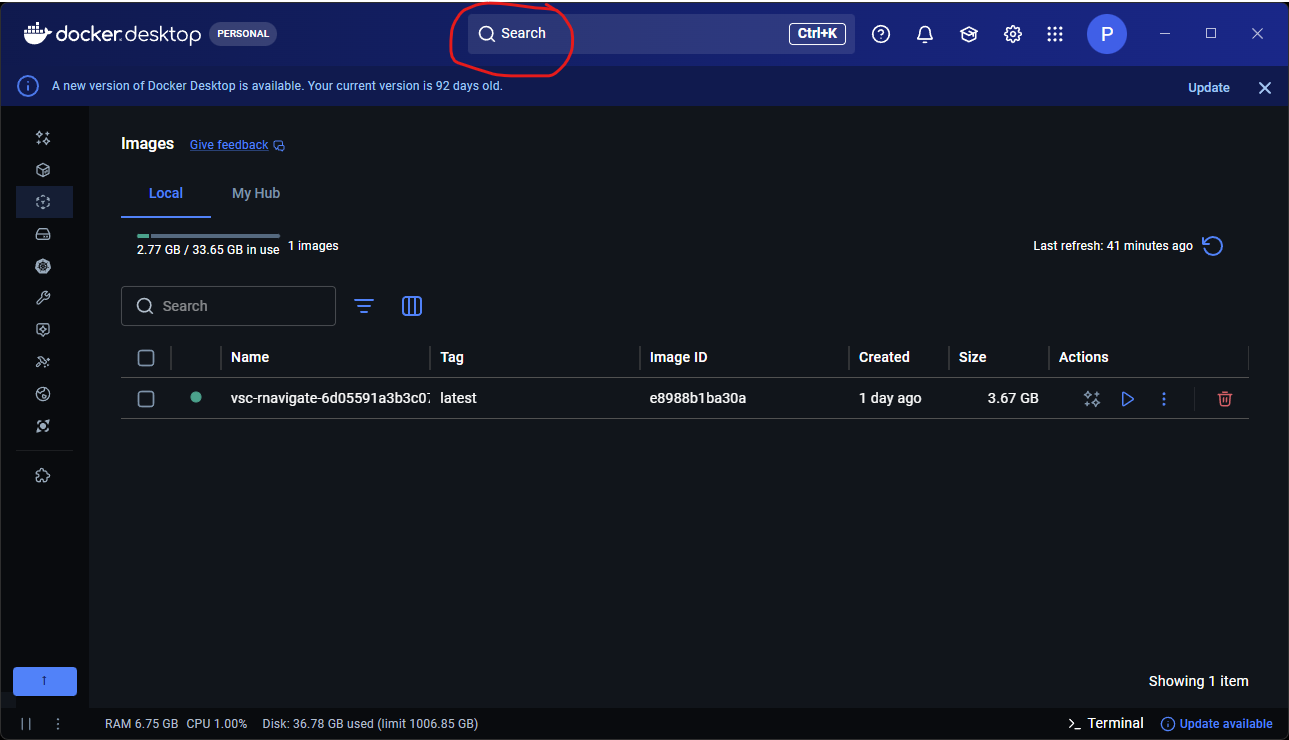
Make sure the tag is set to
latestand click Run.
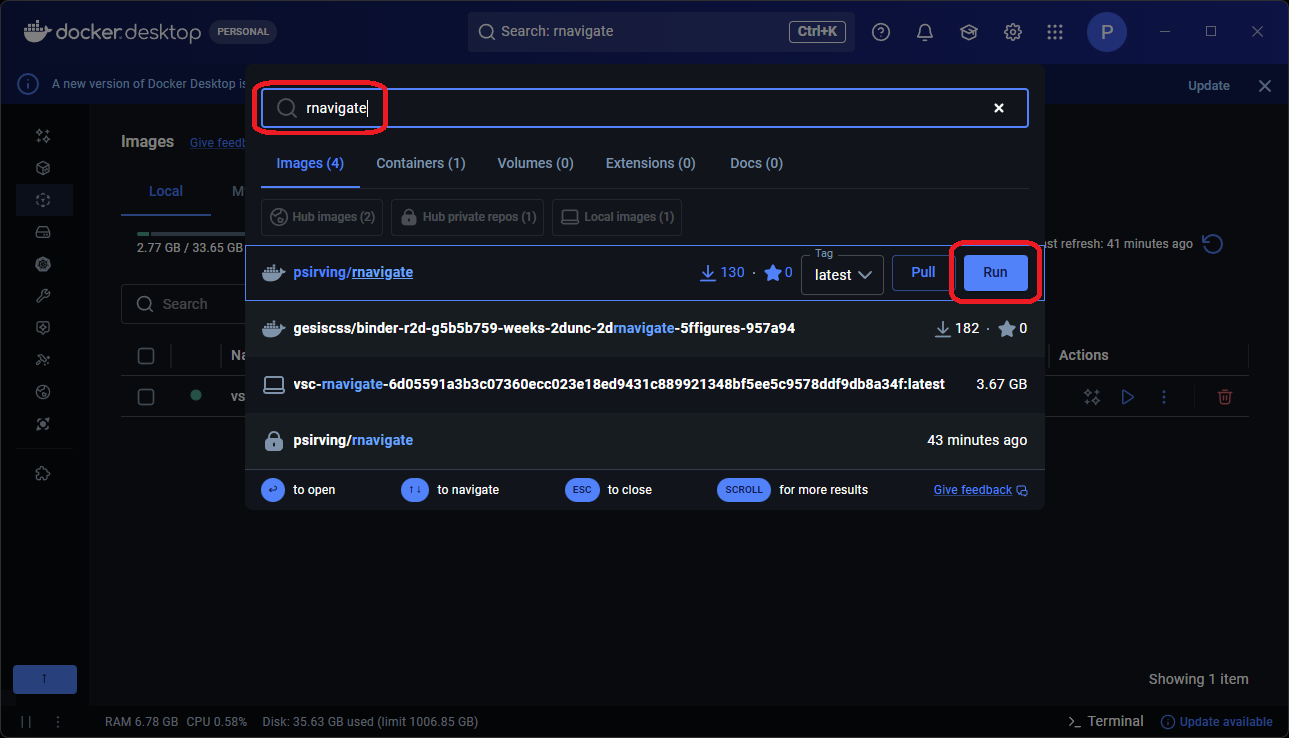
Expand the Optional settings drop-down and enter the following:
Container name:
RNAvigateHost port:
8888Volumes:
Host path: use the (…) button to choose a directory.
Container path:
/home/jovyan/work
Note
Choose a Host path that contains your data files. RNAvigate will only have access to this directory.
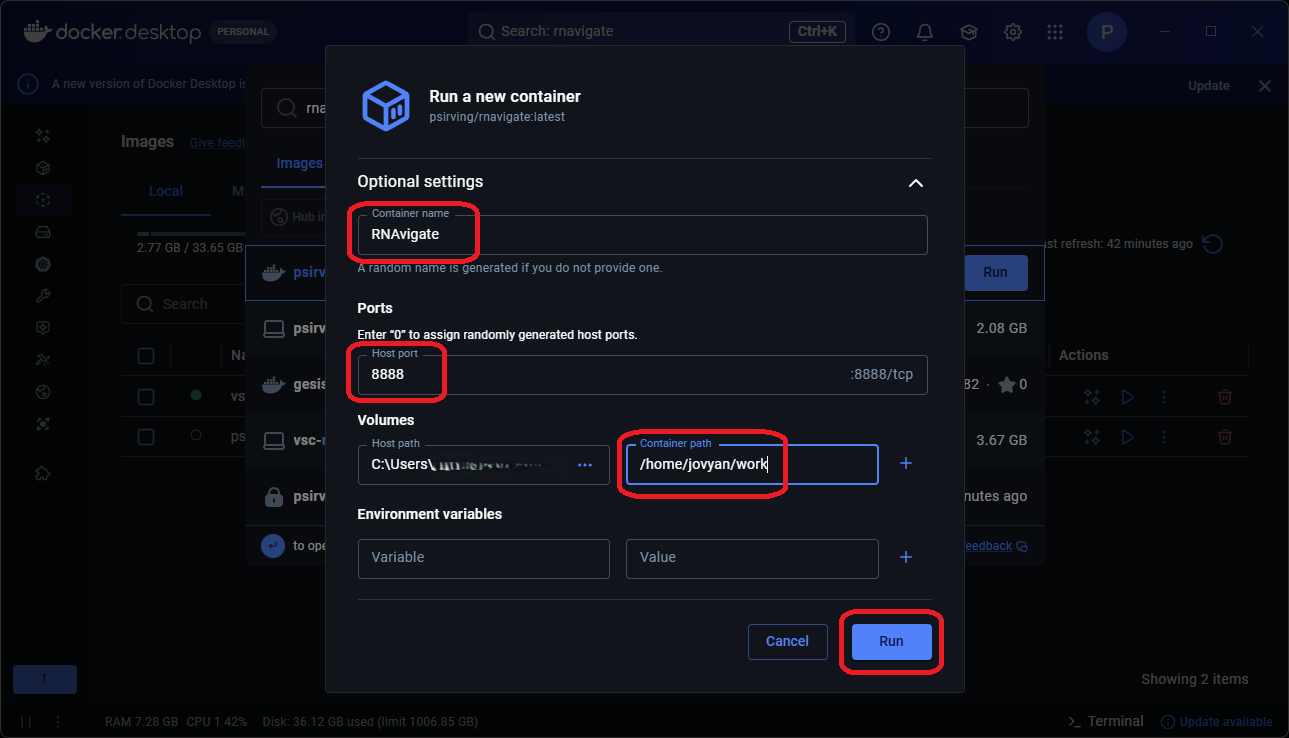
Click Run. A terminal window opens showing the container logs.
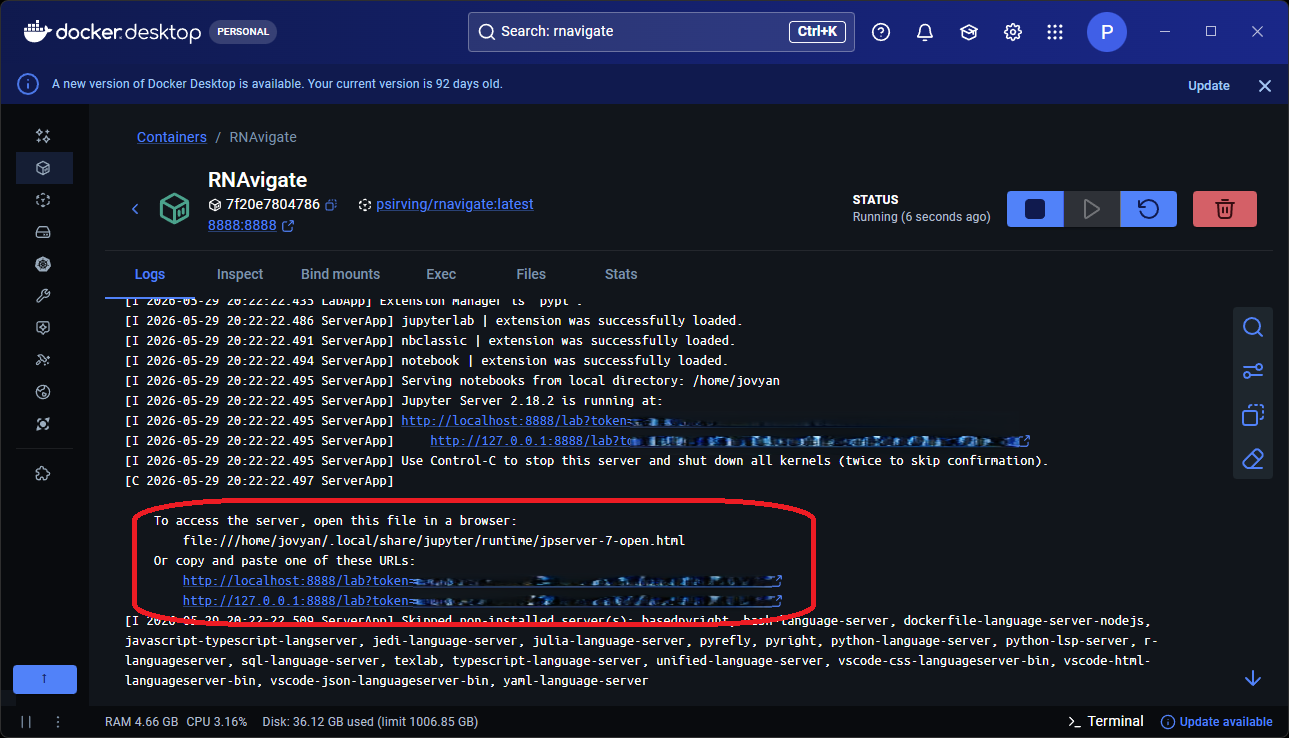
Connect to JupyterLab from Docker
Click one of the links shown in the terminal to open JupyterLab in your browser.
Click on the Work directory; this is linked to the host path you set in step 4.
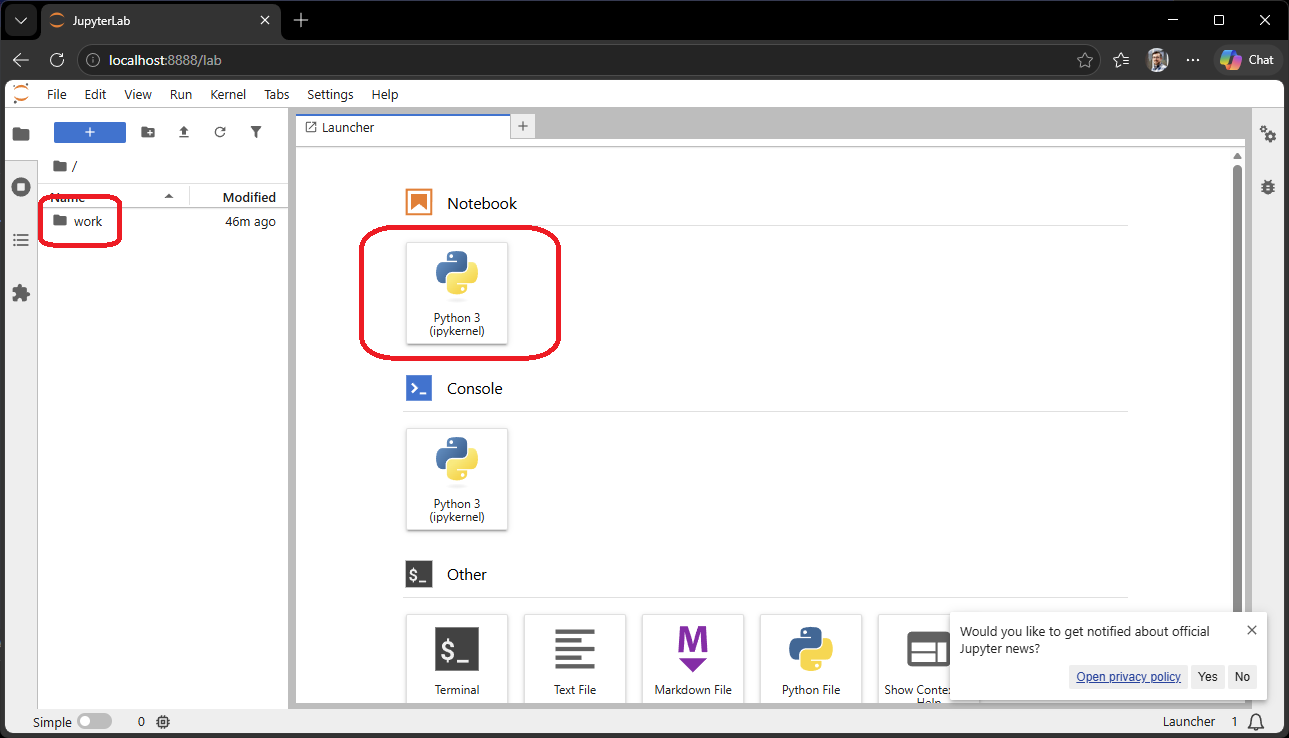
Open a new Jupyter Notebook.
Test the Installation
See Test Plot below.
Stop and Restart
Stop: go back to Docker Desktop and click the Stop button on the container.
Restart: go to Containers, click Start on the RNAvigate container, then click (…) > View Details and return to step 6.
Conda
Use this method if you prefer conda or mamba, or if Docker is unavailable. Mamba can be used in place of conda.
Install the Environment
Download the
environment.ymlfile.
curl -O https://raw.githubusercontent.com/Weeks-UNC/RNAvigate/master/environment.yml
Note
On Windows, open the URL above in a browser and save the file as environment.yml.
Create the conda environment. This step can take several minutes: grab a coffee.
conda env create -f environment.yml
Activate the environment.
conda activate rnavigate
Connect to JupyterLab
Launch JupyterLab.
jupyter lab
A browser window will open automatically. If it does not, copy the URL printed in the terminal.
Test the Installation
See Test Plot below.
Pip
Connect to JupyterLab
Launch JupyterLab.
jupyter lab
A browser window will open automatically. If it does not, copy the URL printed in the terminal.
Test the Installation
See Test Plot below.
VS Code
Use this method if you prefer to work in VS Code rather than a browser-based JupyterLab. VS Code runs Jupyter notebooks natively through an extension: no separate server needed.
Install VS Code
Install Visual Studio Code.
Open VS Code and install the following extensions from the Extensions panel (Ctrl+Shift+X / Cmd+Shift+X):
Create and activate a virtual environment with pip, then install RNAvigate.
python -m venv rnavigate-env
source rnavigate-env/bin/activate
pip install rnavigate
Note
On Windows, use rnavigate-env\Scripts\activate instead.
A conda environment from the Conda section also works: VS Code detects conda environments automatically.
Open a Notebook
Open VS Code in your working directory.
code /path/to/your/data
Create a new Jupyter Notebook: press Ctrl+Shift+P (Cmd+Shift+P on macOS), type Jupyter: Create New Jupyter Notebook, and press Enter.
Click Select Kernel in the top-right corner of the notebook, choose Python Environments, and select
rnavigate-env.
Test the Installation
See Test Plot below.
UNC Longleaf
For UNC users working on the Longleaf HPC cluster.
Install the Environment
Load the required modules and create a conda environment. This does not change your default modules: they will be restored on your next login.
module rm python pymol pyrosetta
module load anaconda/2019.10
conda env create -f /proj/kweeks/bin/RNAvigate_v1.1.1/environment.yml
source activate rnavigate
python -m ipykernel install --user --name=rnavigate
If this completes without errors, exit Longleaf and open UNC’s OpenOnDemand Service.
Connect to Jupyter on OnDemand
Log in with your ONYEN and start a Jupyter Notebook.
Click Interactive Apps and under Servers click Jupyter Notebook.
Enter the number of hours you will need, set CPU to 1, and leave other fields blank.
Don’t forget to save your work before time runs out!
Test the Installation
See Test Plot below.
Test Plot
Run the following in a Jupyter Notebook cell to confirm RNAvigate is working correctly. This loads a built-in example dataset and generates an arc plot of DMS-MaP reactivity.
import rnavigate as rnav
from rnavigate.examples import tpp

rnav.plot_arcs(
    samples=[tpp],
    sequence="ss",
    structure="ss",
    profile="dmsmap",
)
If the plot appears without errors, your installation is working correctly.